Accessing the library desk
The library is its own workspace, used by the librarian and library manager. It keeps the catalogue, loans, members, and stocktakes separate from academics and finance.
Sign in and open the Library
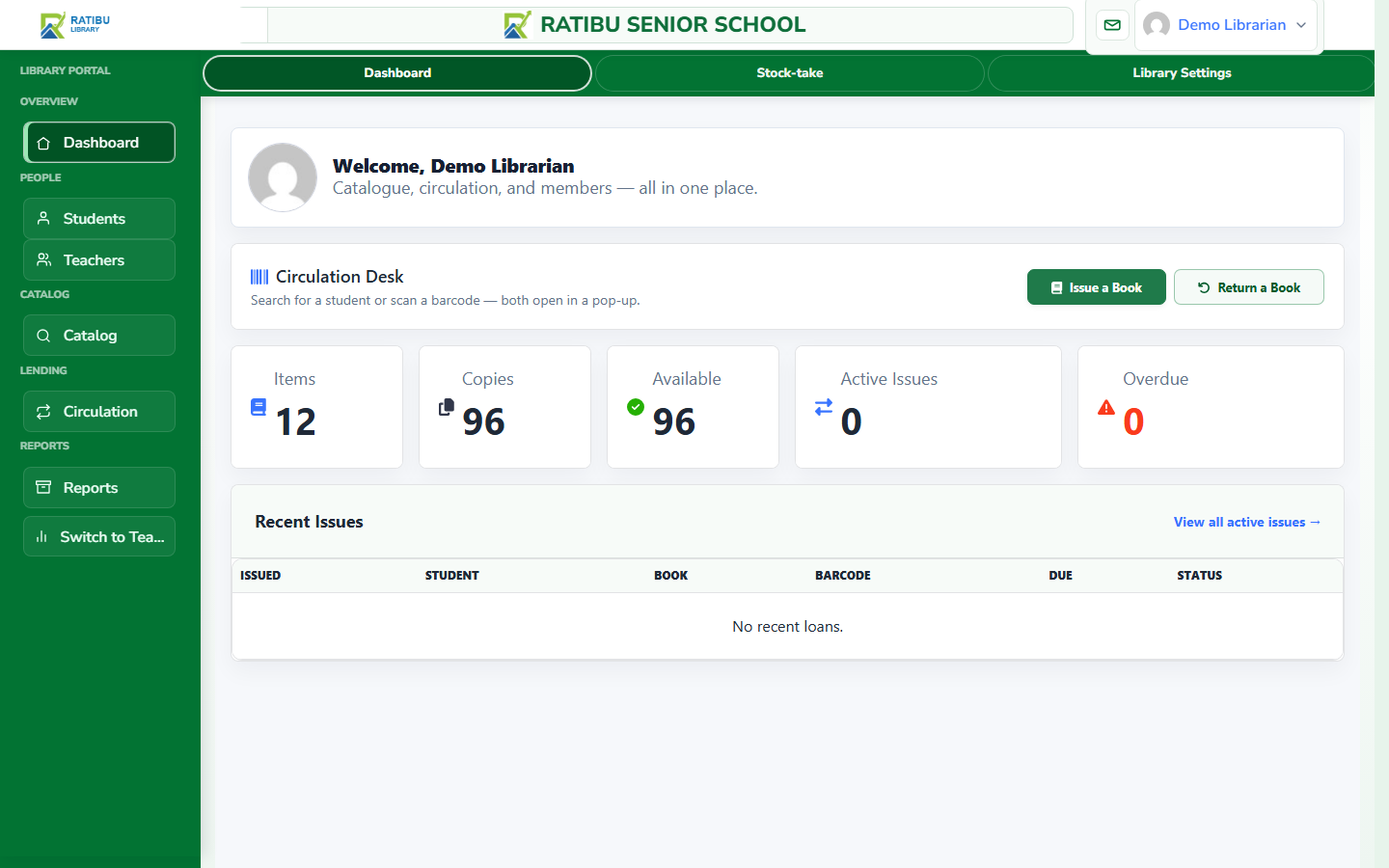
Log in with your account and open the Library workspace. The dashboard shows your active loans, overdue items, catalogue size, and quick actions.
Cataloguing books and resources
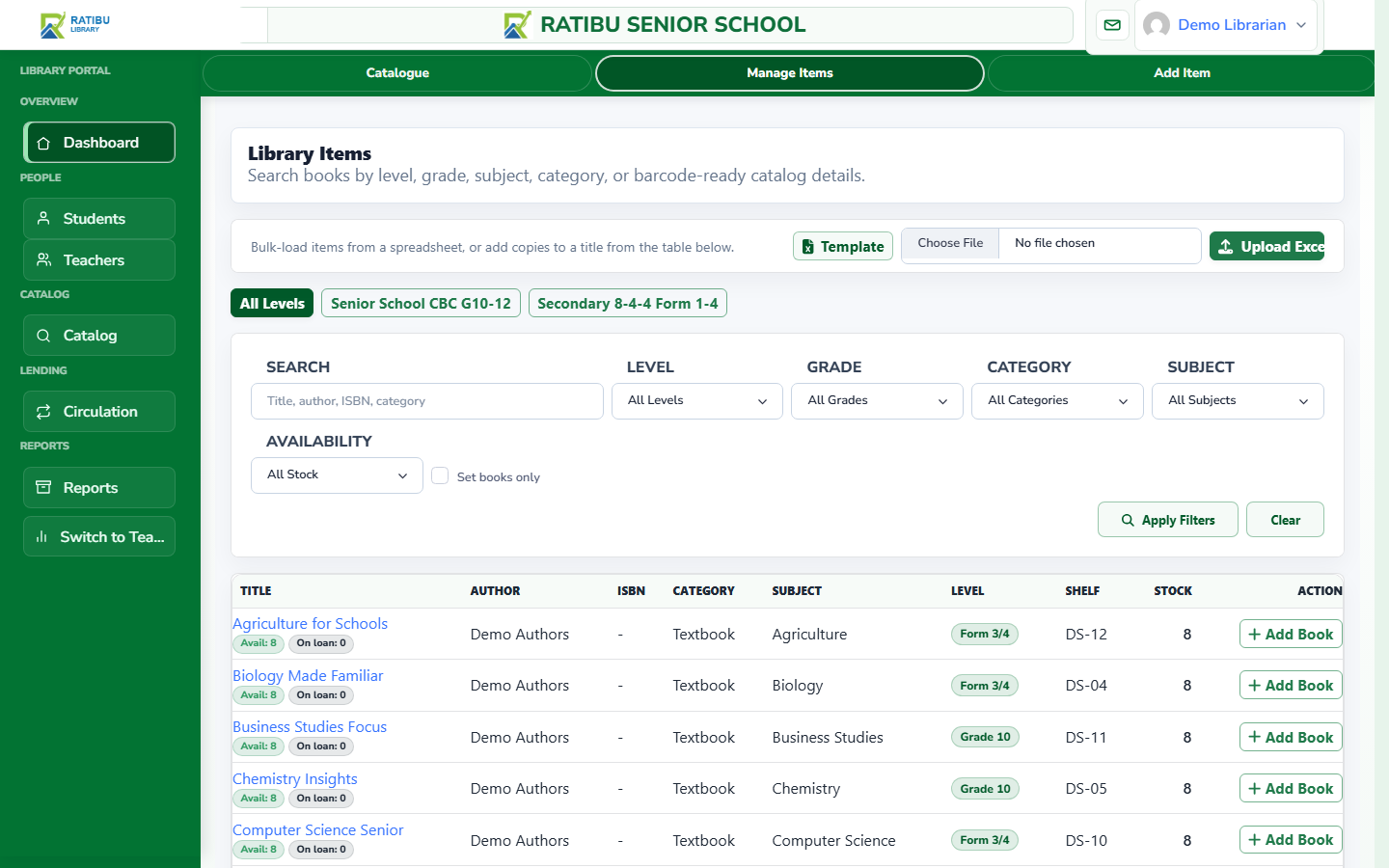
Every book, textbook, and resource starts as a catalogue item. Items hold the title, author, ISBN, category, and subject — then you add individual copies that can actually be borrowed.
Add a catalogue item
Record the title, author, category, publisher, and ISBN. Use a category and subject so the item is easy to find and to report on later.
Adding copies and barcodes
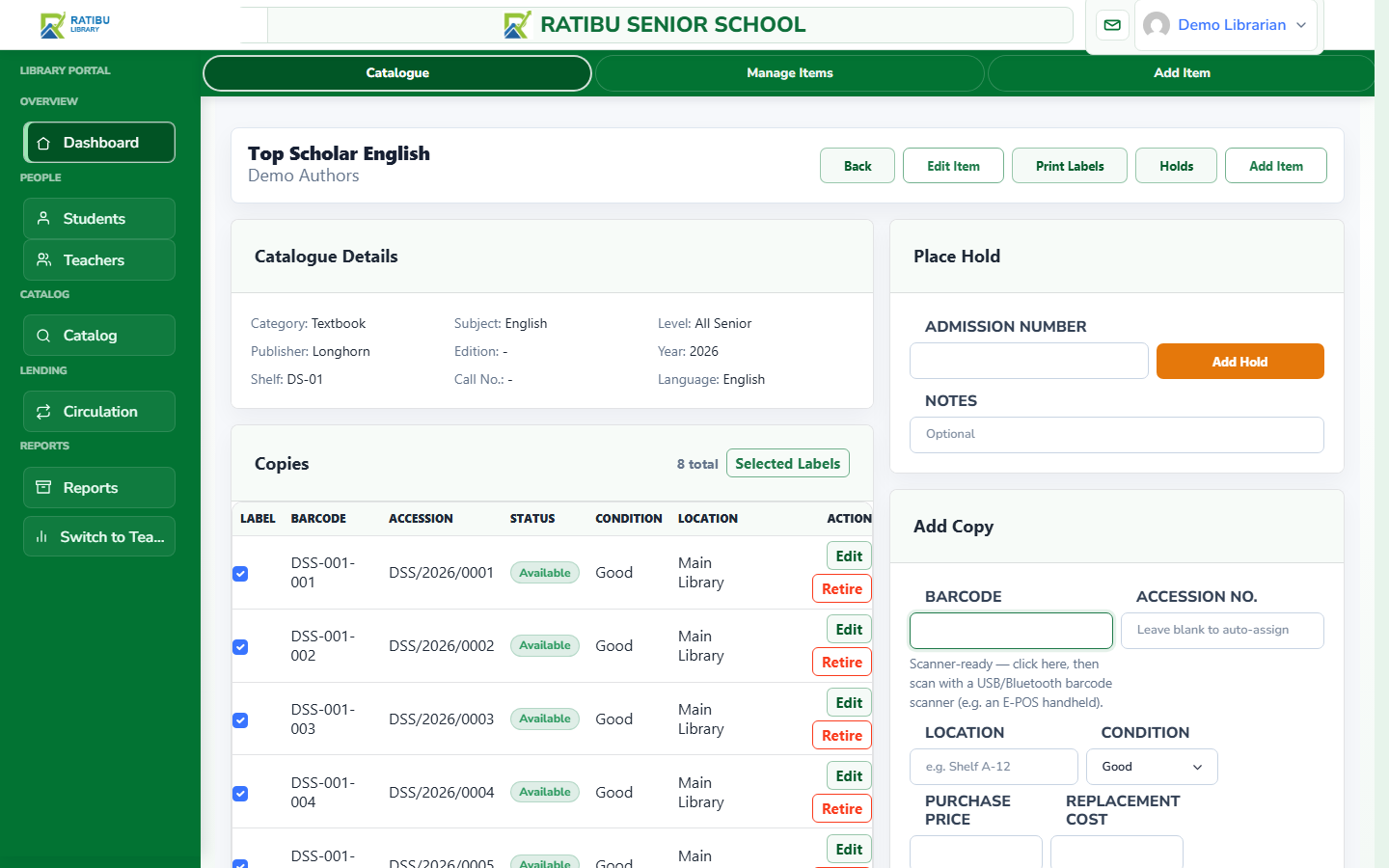
A title is the book; a copy is a physical book on the shelf. Each copy gets its own barcode or accession number so the system knows exactly which one is borrowed.
Add copies to an item
Add how many physical copies you have. Ratibu assigns each copy a unique identifier and prints spine labels so books can be scanned in and out.
Issuing and returning loans
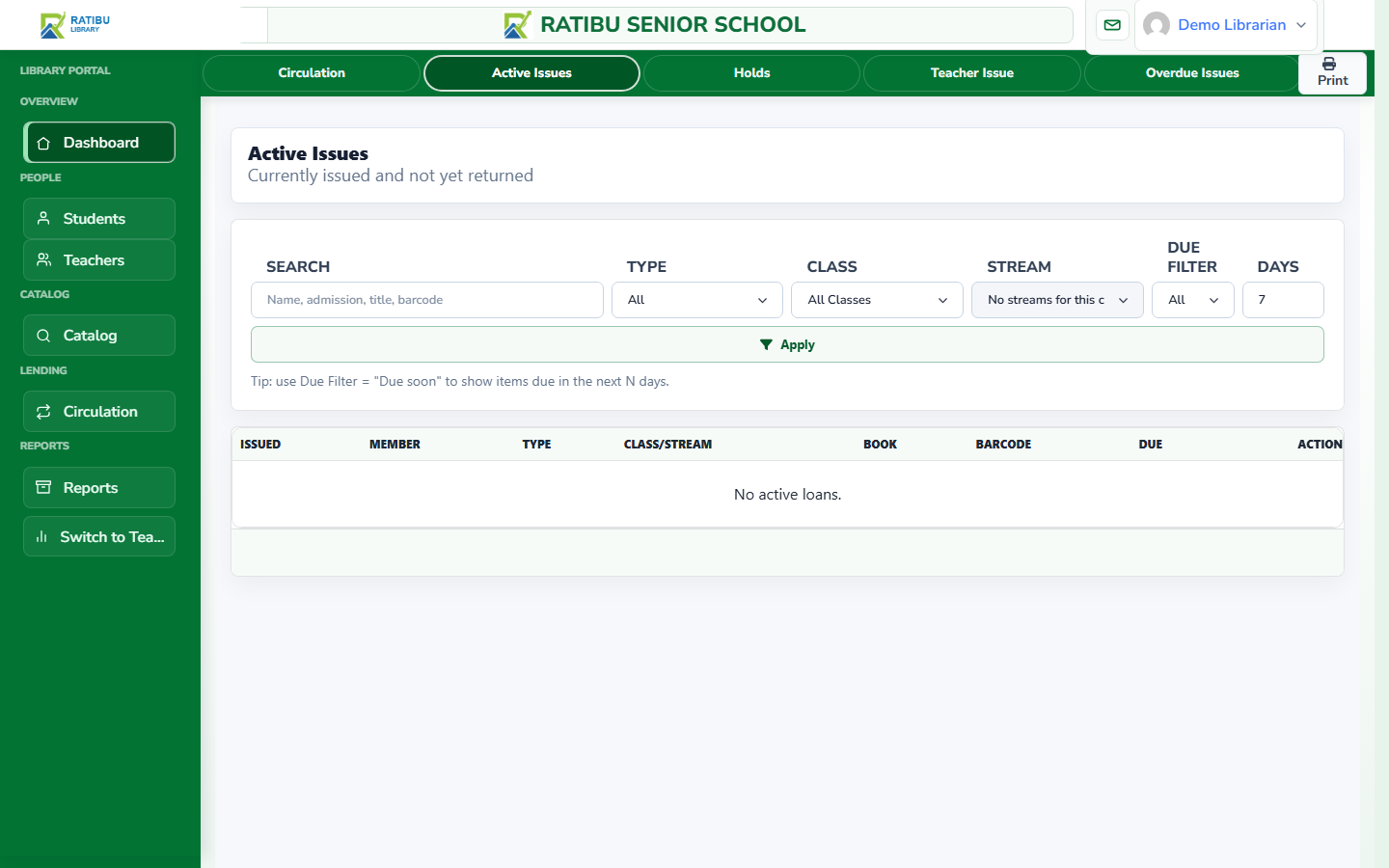
Loans connect a member to a specific copy for a set period. Issuing and returning update the copy's status automatically, and overdue items are flagged for reminders.
Issue a book
Pick a member, scan or select a copy, and set the due date. The loan is recorded instantly and the copy is marked as on loan.
Return and manage holds
Scan the copy to mark it returned. If a book is out, place a hold so the next member gets it when it comes back. Overdue reminders can be sent with one action.
Managing members and clearance
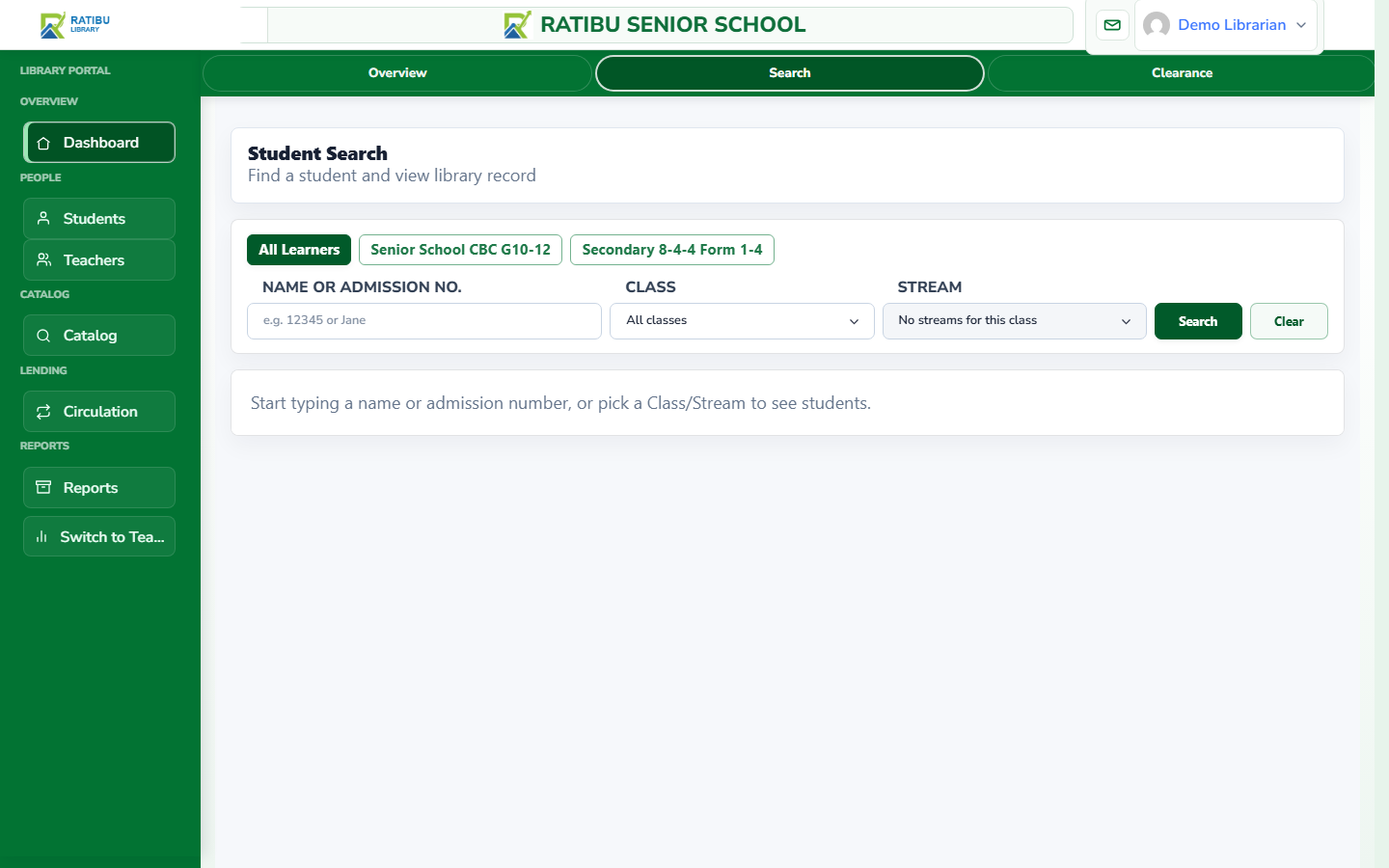
Learners and staff become library members automatically from the school records. Clearance makes sure no one leaves with outstanding books.
Review a member
Open a member to see their current loans, history, and any outstanding items. This is the same view used when a learner or teacher is leaving.
Running stocktakes and reports
Keep the catalogue accurate with stocktakes, and report on inventory, loans, lost items, and clearance with exportable summaries.
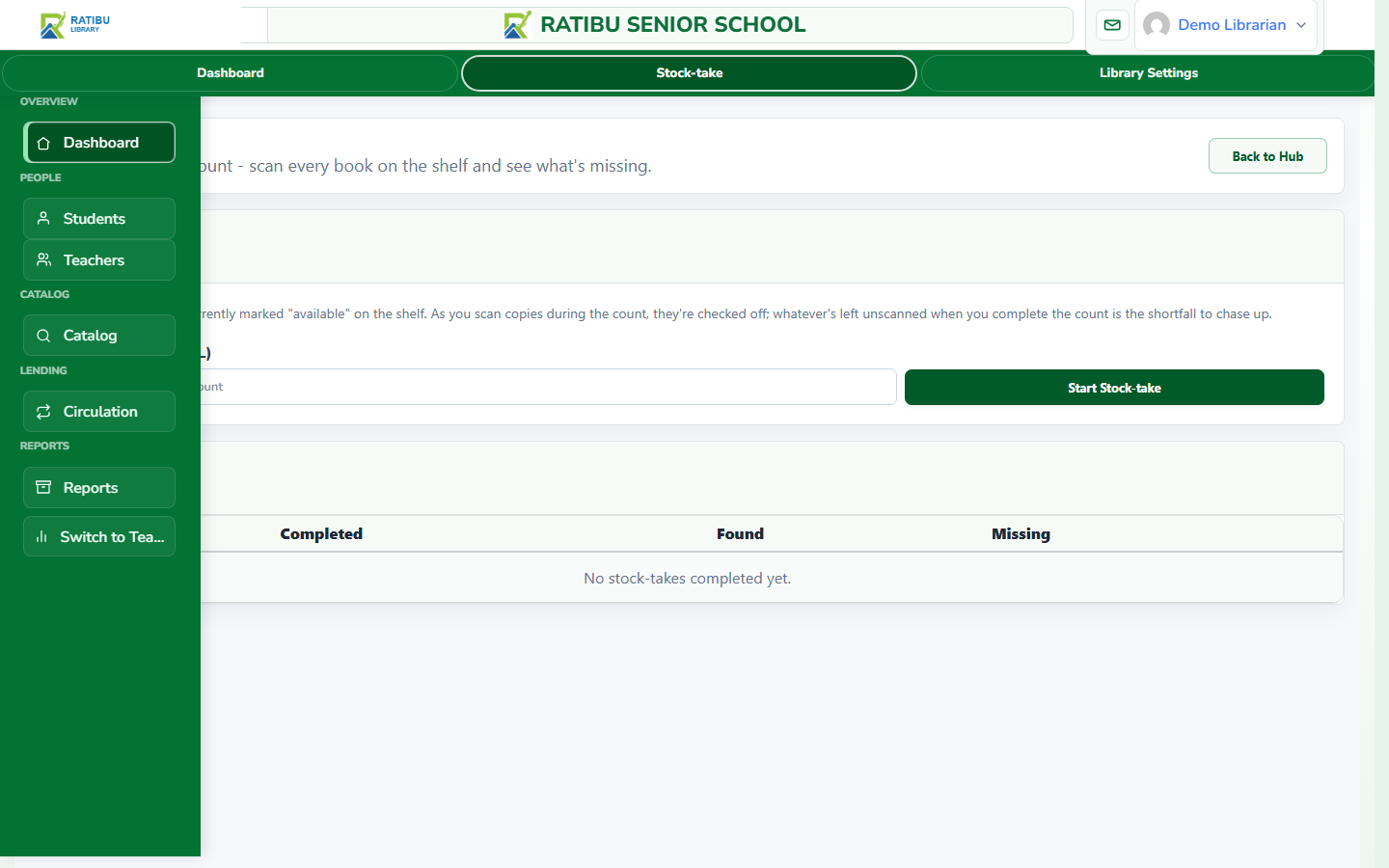
Start a stocktake
Begin a stocktake session and scan the copies on your shelves. Ratibu reconciles what you scanned against what it expects, so you can spot missing or misplaced items.
Export reports
Generate inventory, clearance, audit, and lost-item reports, each exportable for school records and committee meetings.