Accessing the finance desk
The finance workspace is a separate desk from academics. Only users with a finance role — bursar, accountant, cashier, or owner — can open it, which keeps money records properly controlled.
Sign in and open Finance
Log in with your account, then open the Finance workspace. Finance roles may be asked to re-confirm their password before the desk unlocks.
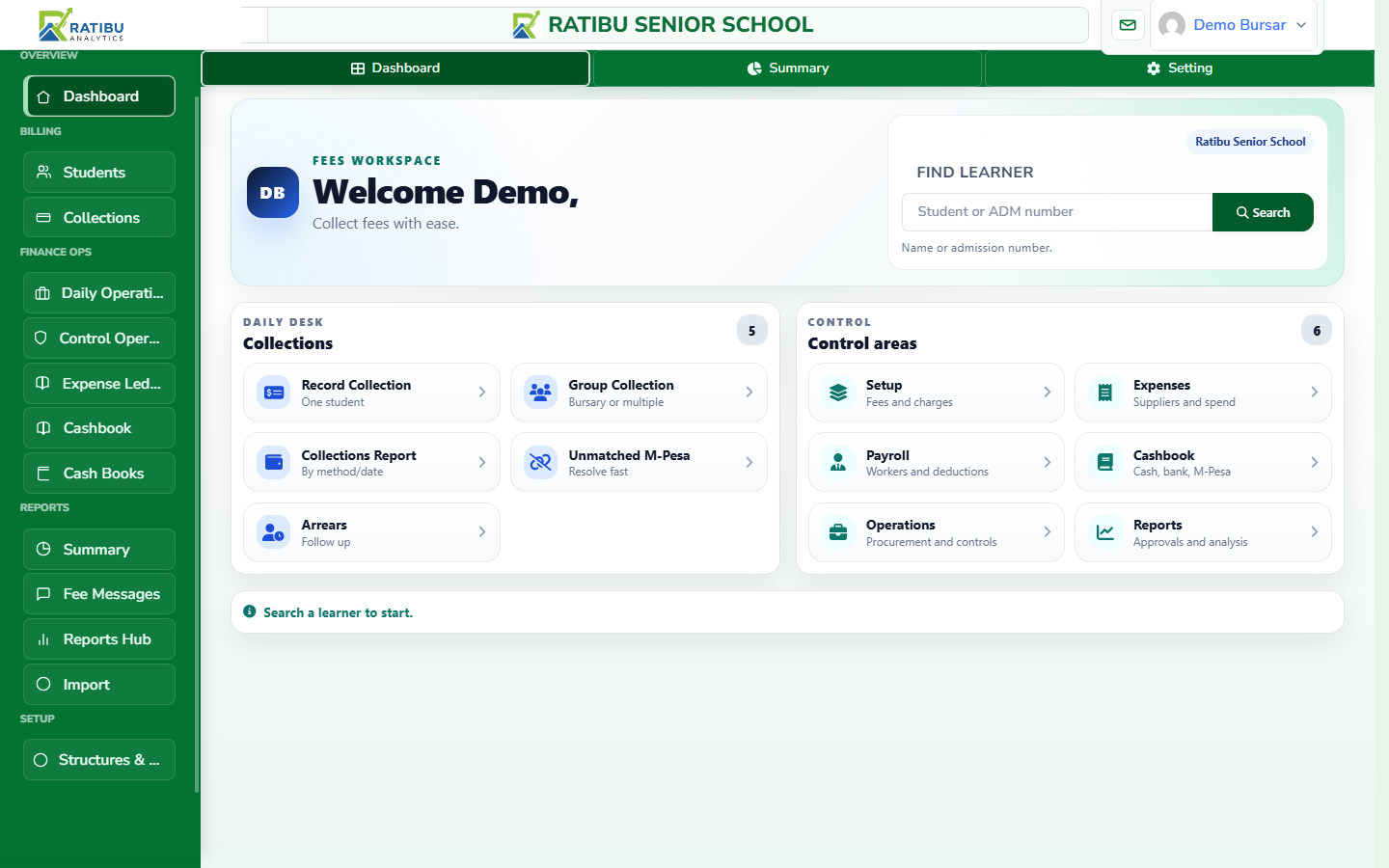
Setting up fee structures
A fee structure defines what each class pays per term: tuition, boarding, transport, and any other charges. Once set up, Ratibu can bill learners automatically.
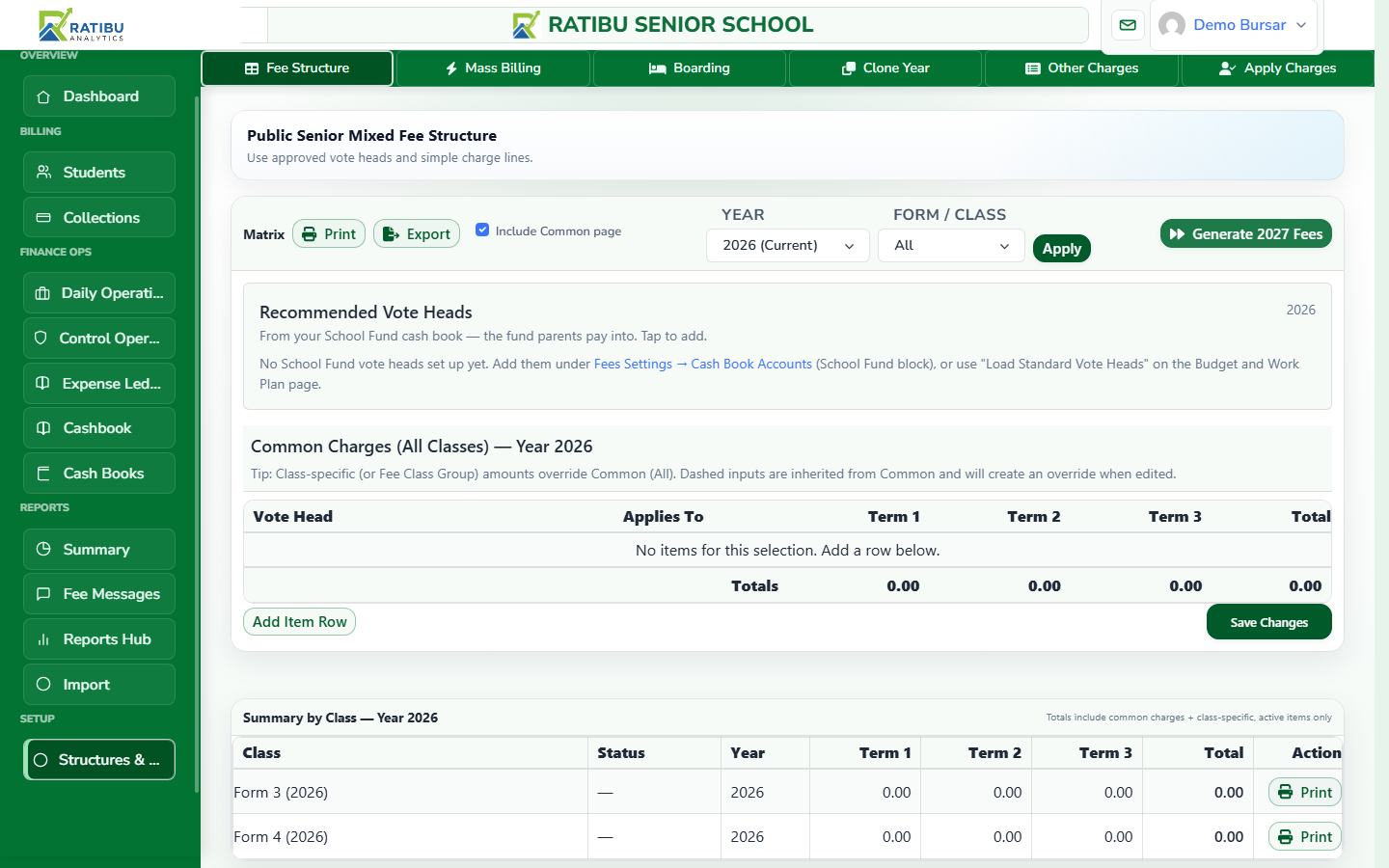
Build the structure matrix
Choose the year and term, then enter the amount each class should pay for each charge type. You can group classes that share the same fees and clone a structure into the next term.
Configure payment channels
Add your M-PESA Paybill and bank accounts so payment references print correctly on fee notes and statements. This is also where parent-portal visibility is enabled.
Recording payments and issuing receipts
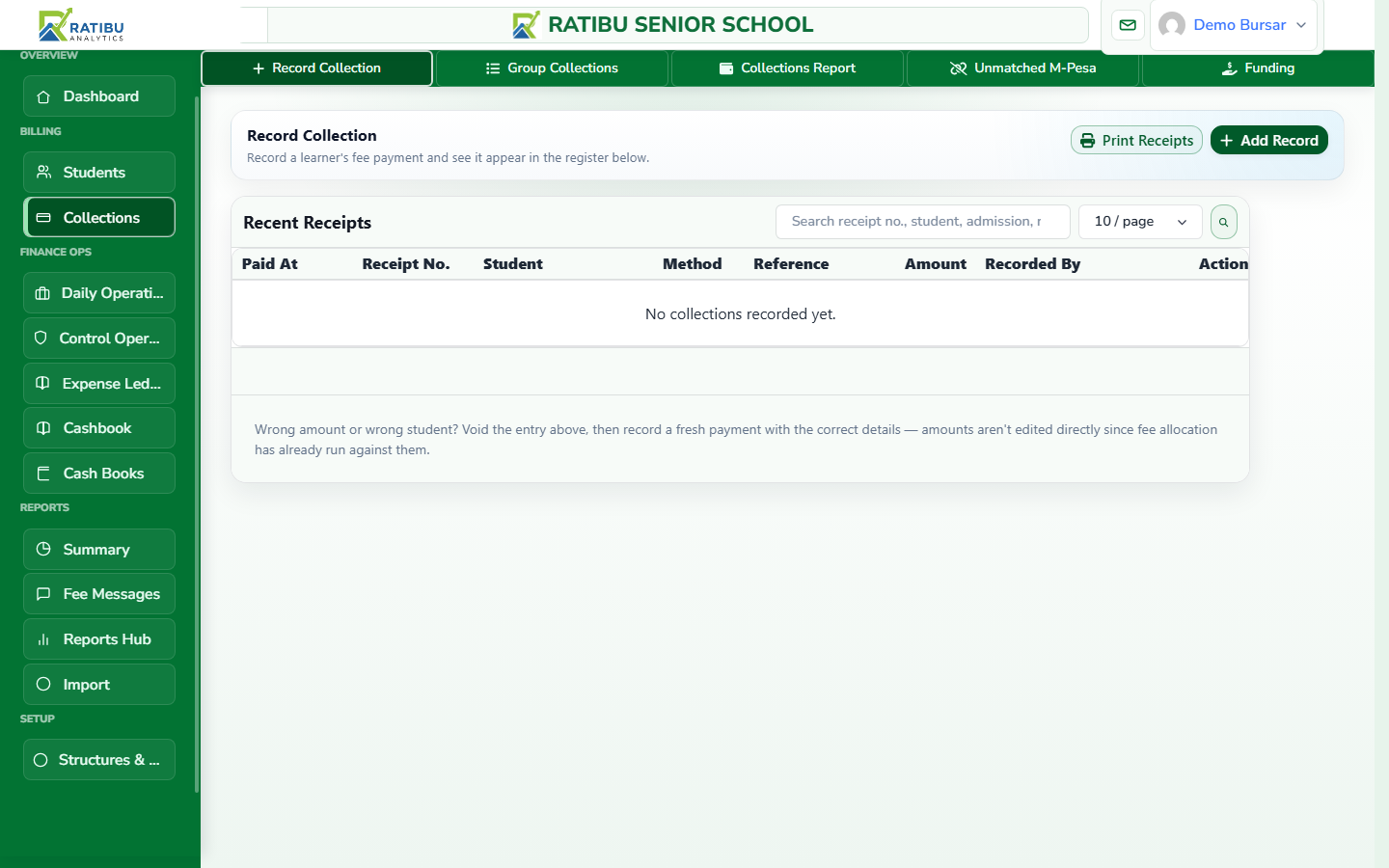
Each payment is recorded against a learner and allocated to their charges. Receipts are generated instantly and can be printed or shared with parents.
Record a payment
Search the learner, enter the amount and payment method (cash, bank, M-PESA, cheque), then allocate it to the relevant charge. The balance updates automatically.
Print or share the receipt
Every payment produces a numbered receipt. Print it on the spot, or generate the student's full statement for the parent.
Tracking expenses and vouchers
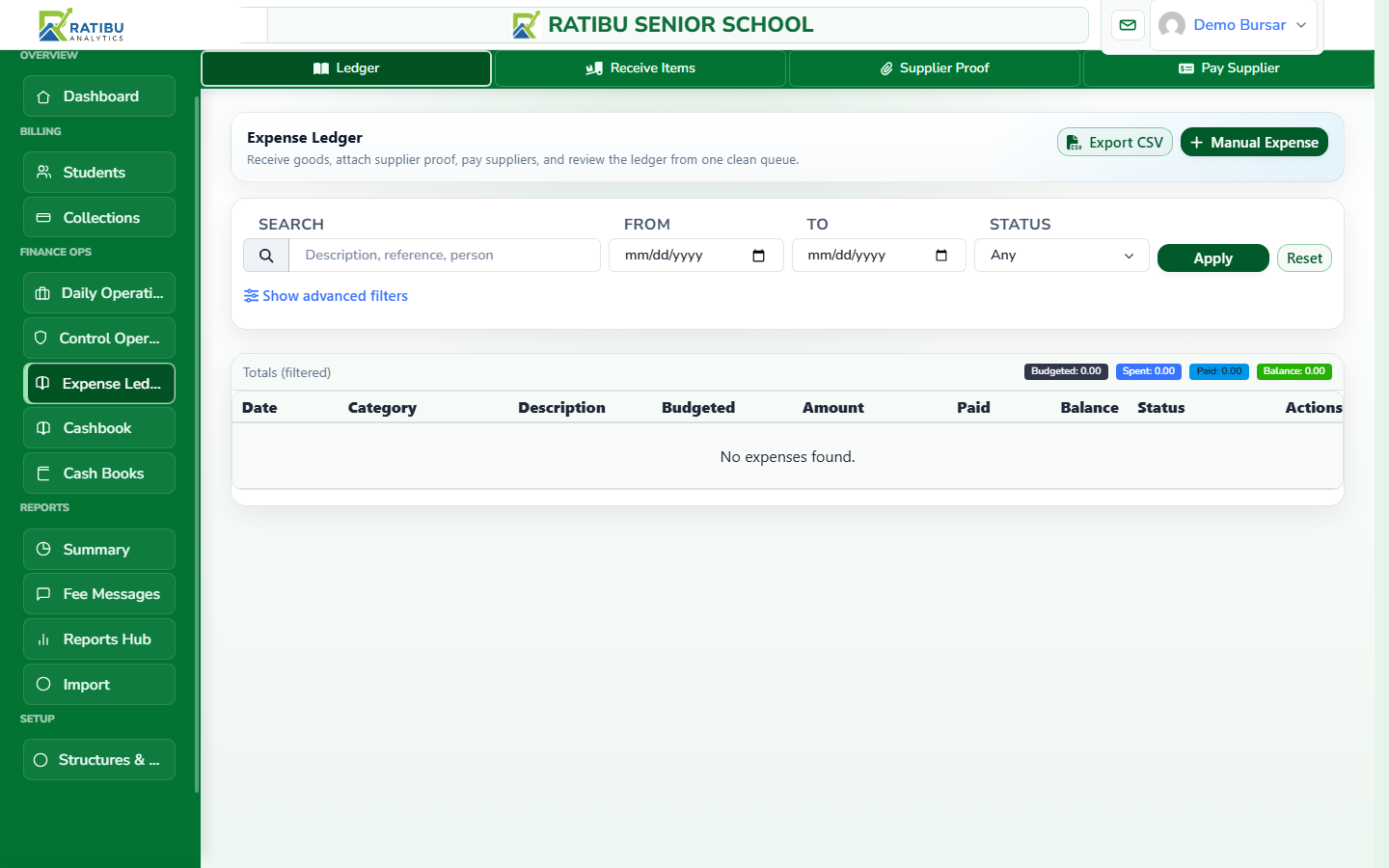
Finance isn't only about money coming in. Ratibu also records outgoing money — expenses, procurement vouchers, suppliers, and payments — so management sees the full picture.
Record an expense
Log each expense with its amount, category (vote head), supplier, and date. Attach receipts and track payment status until it's settled.
Prepare procurement vouchers
For larger purchases, create a procurement voucher that captures the supplier, items, and approval chain — then post the payment once goods are received.
Reading finance reports and summaries
Ratibu turns fee and expense records into management-ready reports: collections summaries, term summaries, creditor lists, and reconciliation views.
Review the fees summary
See total collections, outstanding balances, and recent activity for a term — the numbers leadership needs for decisions.
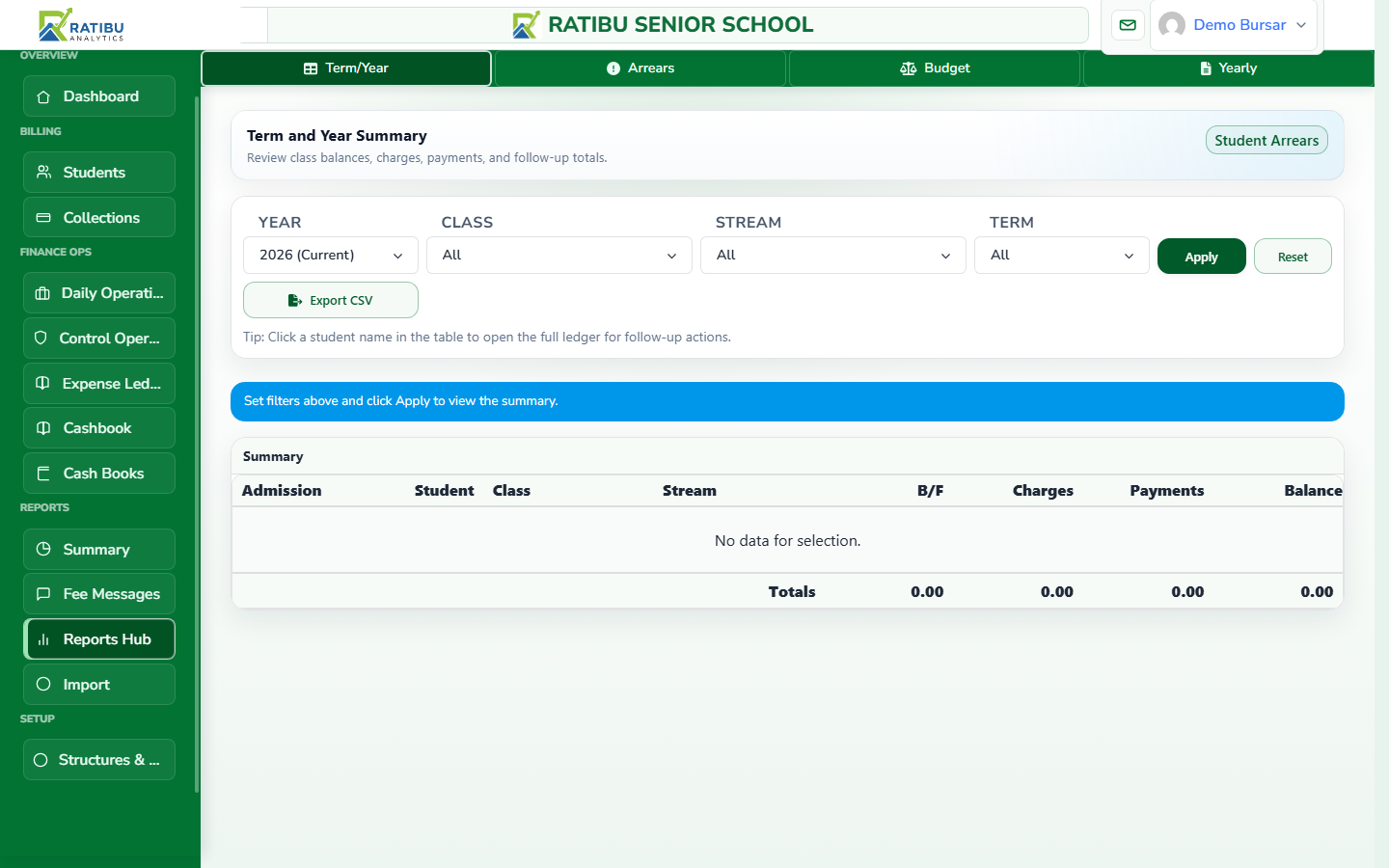
Use the report library
Beyond the summary, Ratibu includes collections reports, overdue balances, creditor lists, cashbook, and M-PESA reconciliation — each with an export.