Logging in to Ratibu
Your school is issued secure login details after access is approved. Logging in takes you to your dashboard, which is scoped to your role — administrators see the whole school, while teachers see their assigned classes and subjects.
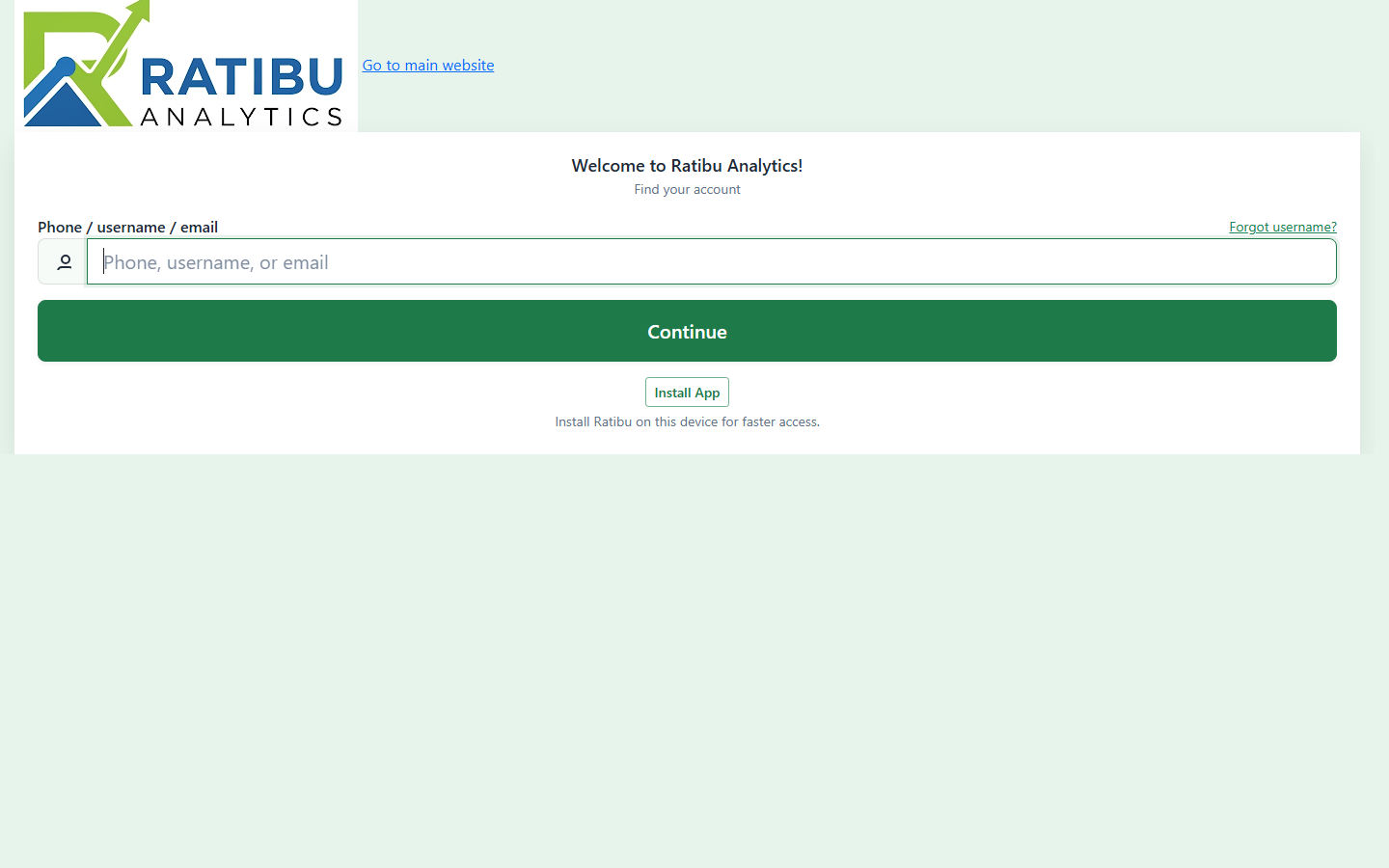
Find your account
Open the login page and enter the phone number, username, or email your account was registered with, then choose the account you want to sign in as.
Land on your dashboard
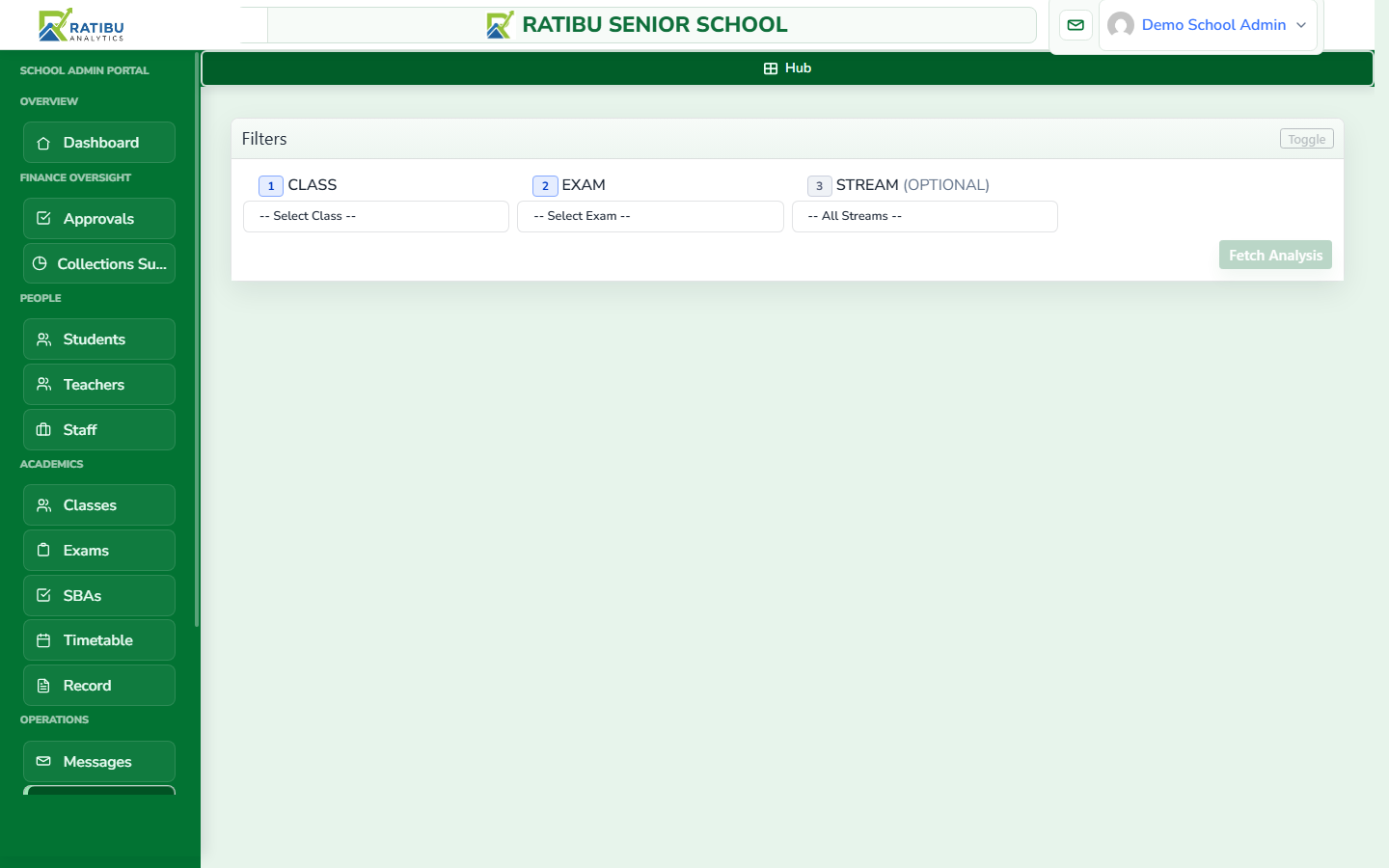
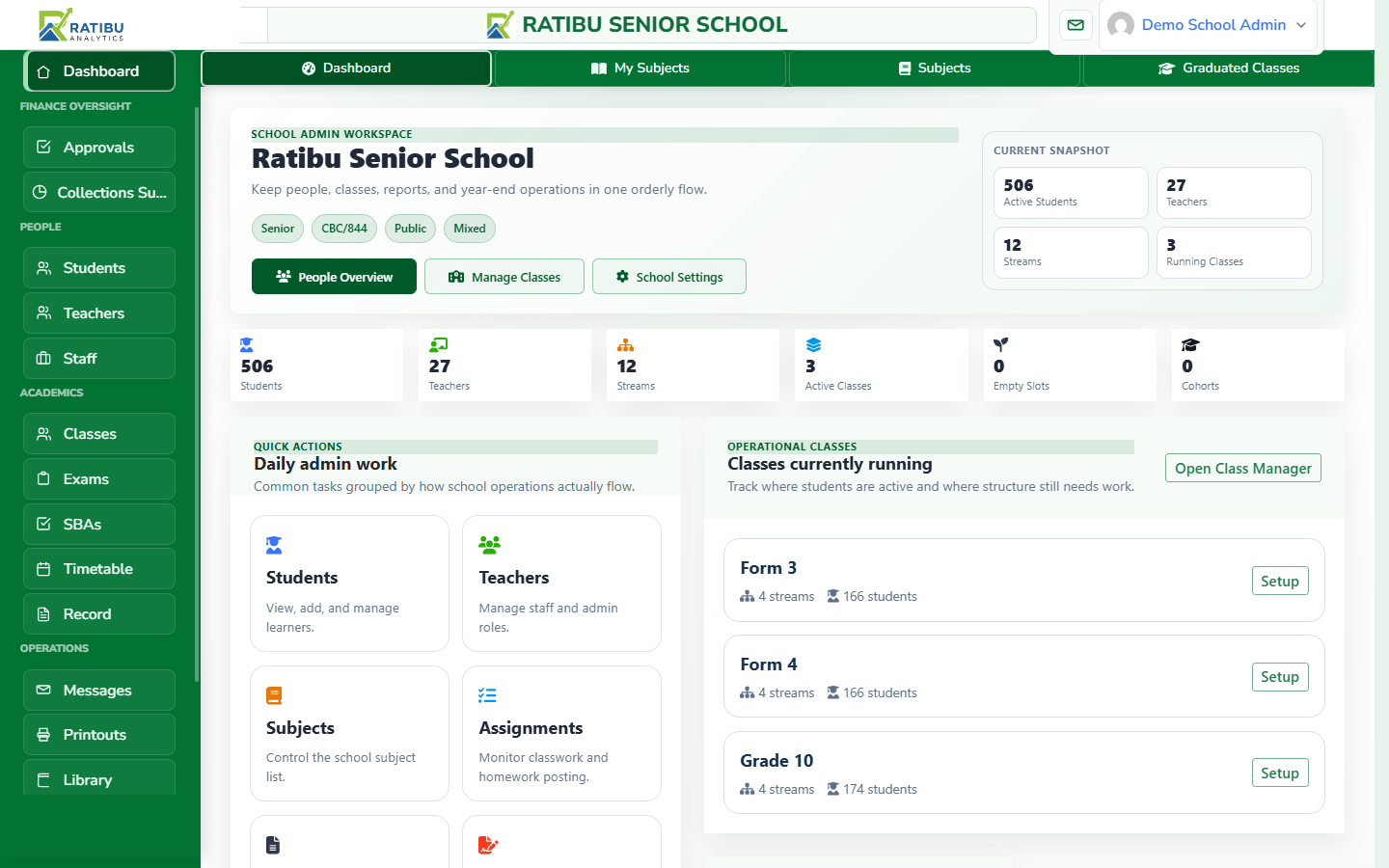
Your dashboard shows a snapshot of your school — learner counts, upcoming exams, recent activity, and the navigation for everything you use most.
Setting up your school structure
Before marks and reports make sense, Ratibu needs your school's structure: academic years, terms, classes, and streams. This is normally done once at onboarding, then maintained each term.
Create classes and streams
Add the classes your school runs — for example Form 4 — then create the streams within them (e.g. North, East, West). Streams are where learners are grouped for marks and reporting.
Enrol learners
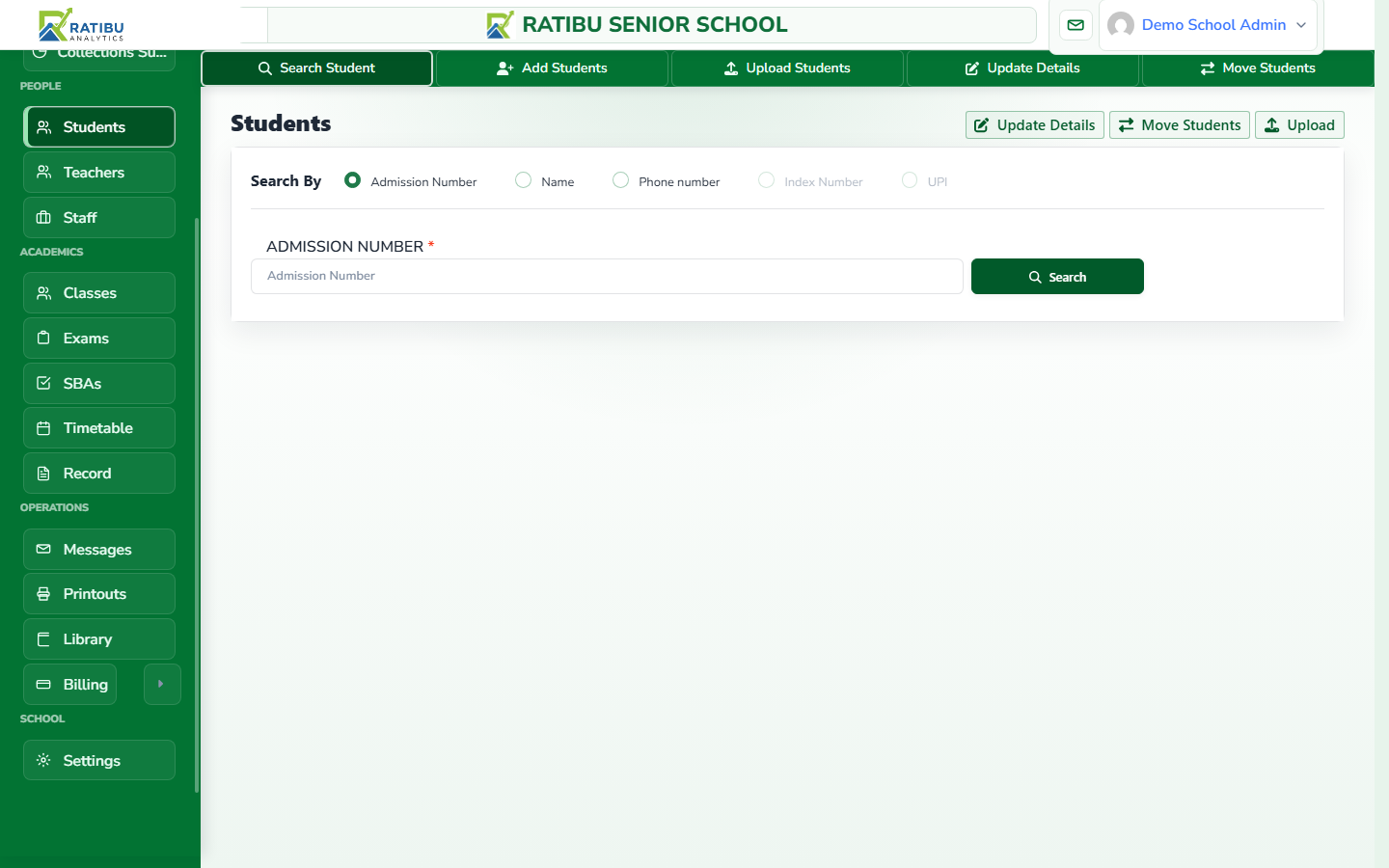
Add learners individually, or import them in bulk from a CSV template. Each learner is placed into a class and stream, which keeps every later mark and report correctly attributed.
- Add a single learner with name, admission number, class, and guardian contacts.
- Bulk import using the downloadable template for faster setup.
Adding subjects
Subjects are the backbone of assessment and analysis. Add each subject your school offers, then assign it to the classes and streams that study it.
Manage your subjects
Give each subject a name and short code (e.g. Mathematics — CMATH), and choose its category and grading type. Ratibu supports CBC and CBE subjects as well as traditional exam subjects.
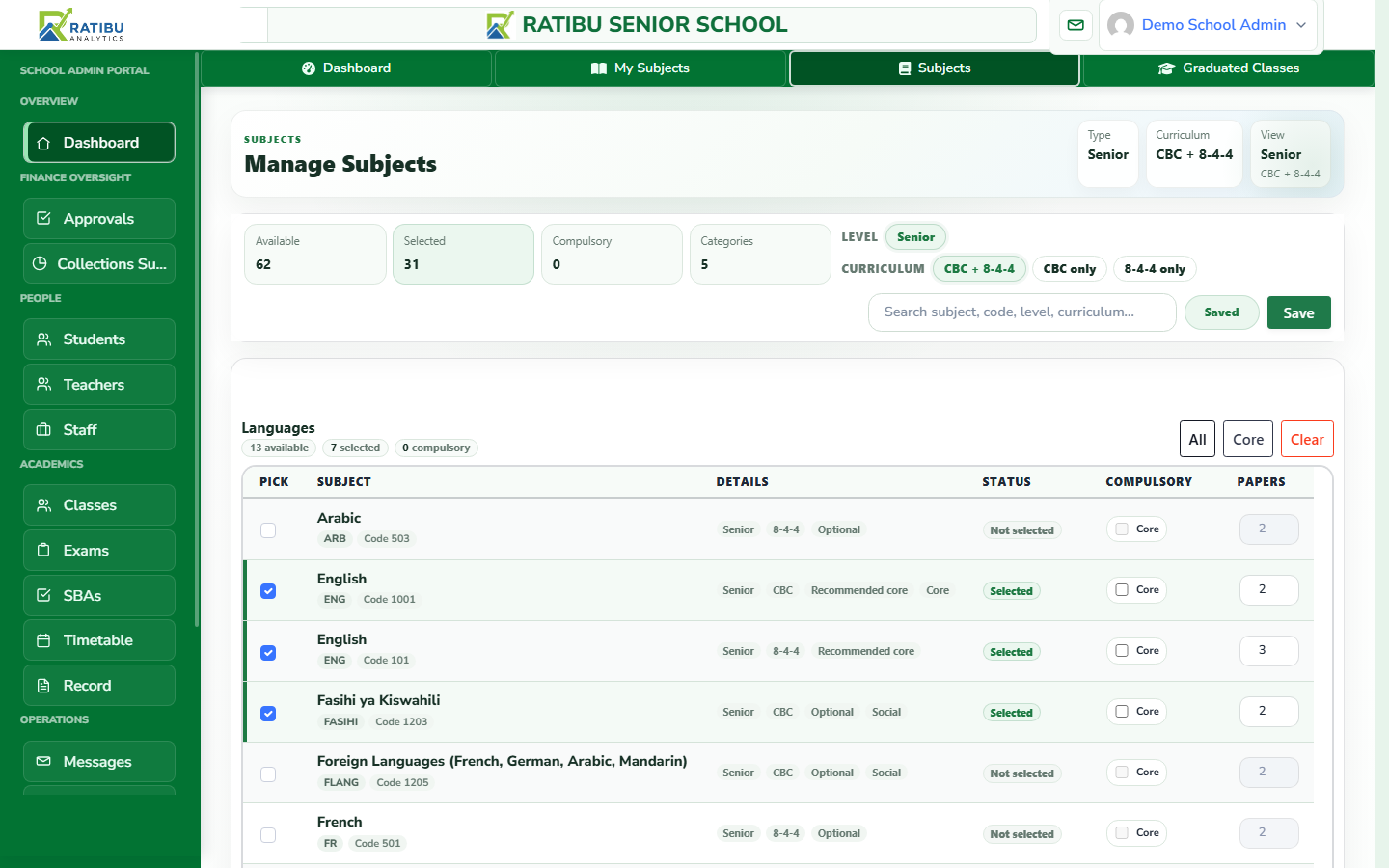
Assign subjects to classes
After creating subjects, attach them to the classes and streams that offer them. This controls which subjects appear on each class's marks entry and report forms.
Adding teachers and assigning subjects
Teachers log in with their own accounts and only see the classes and subjects assigned to them — which keeps marks entry clean and accountable.
Add a teacher
Record each teacher's name, phone number, and staff number, then send them their login credentials.
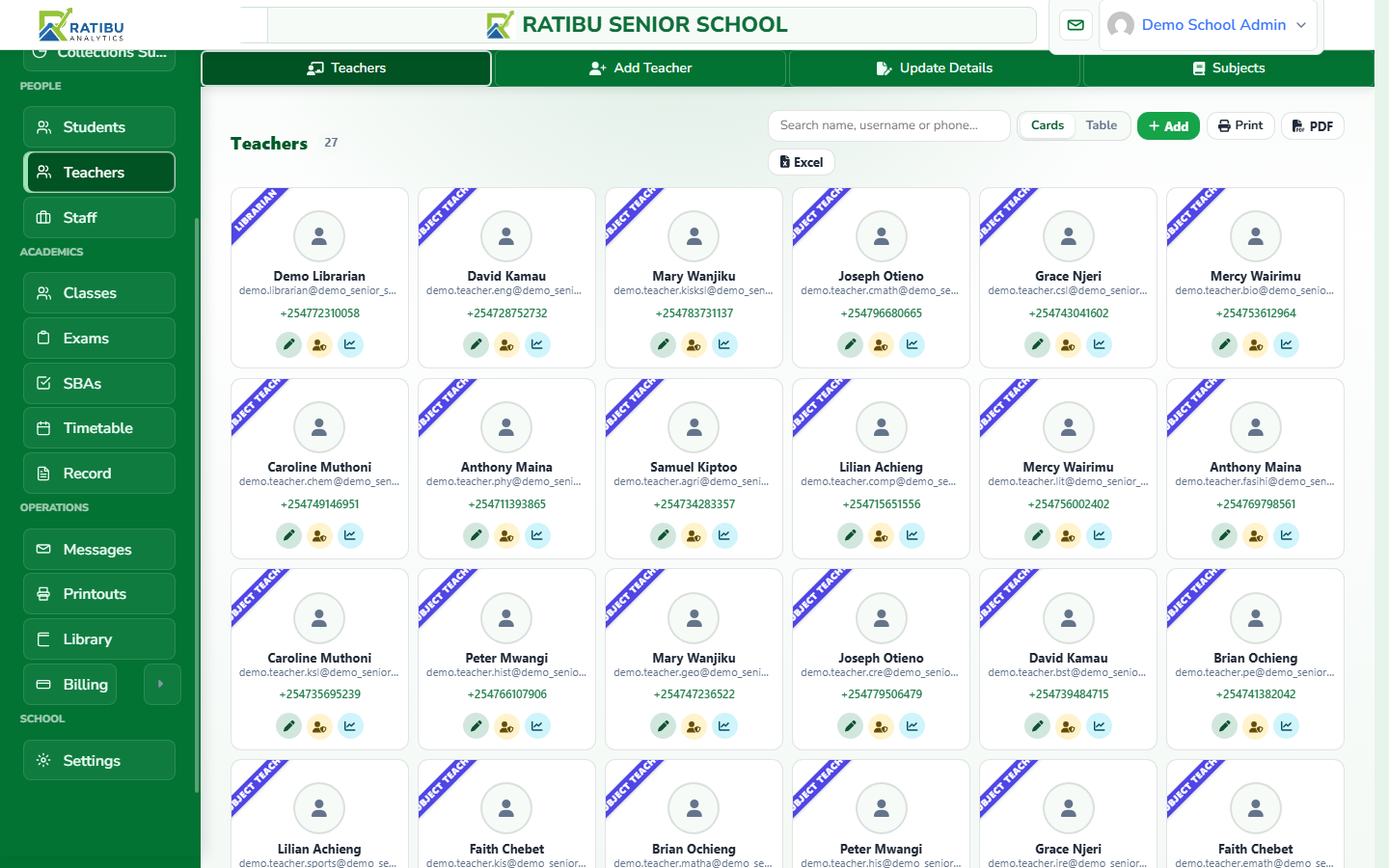
Confirm teacher responsibilities
Each teacher's dashboard will now list their assigned classes and subjects. Subject heads and department leads can be given broader visibility for moderation.
Creating exams and assessments
An exam (or assessment) is a cycle that ties together a year, term, the classes involved, the subjects being tested, and the marks to be entered.
Create an exam cycle
Name the exam (e.g. Term 2 — End of Term), choose the year and term, and select the classes and subjects it covers. Optionally split subjects into papers.
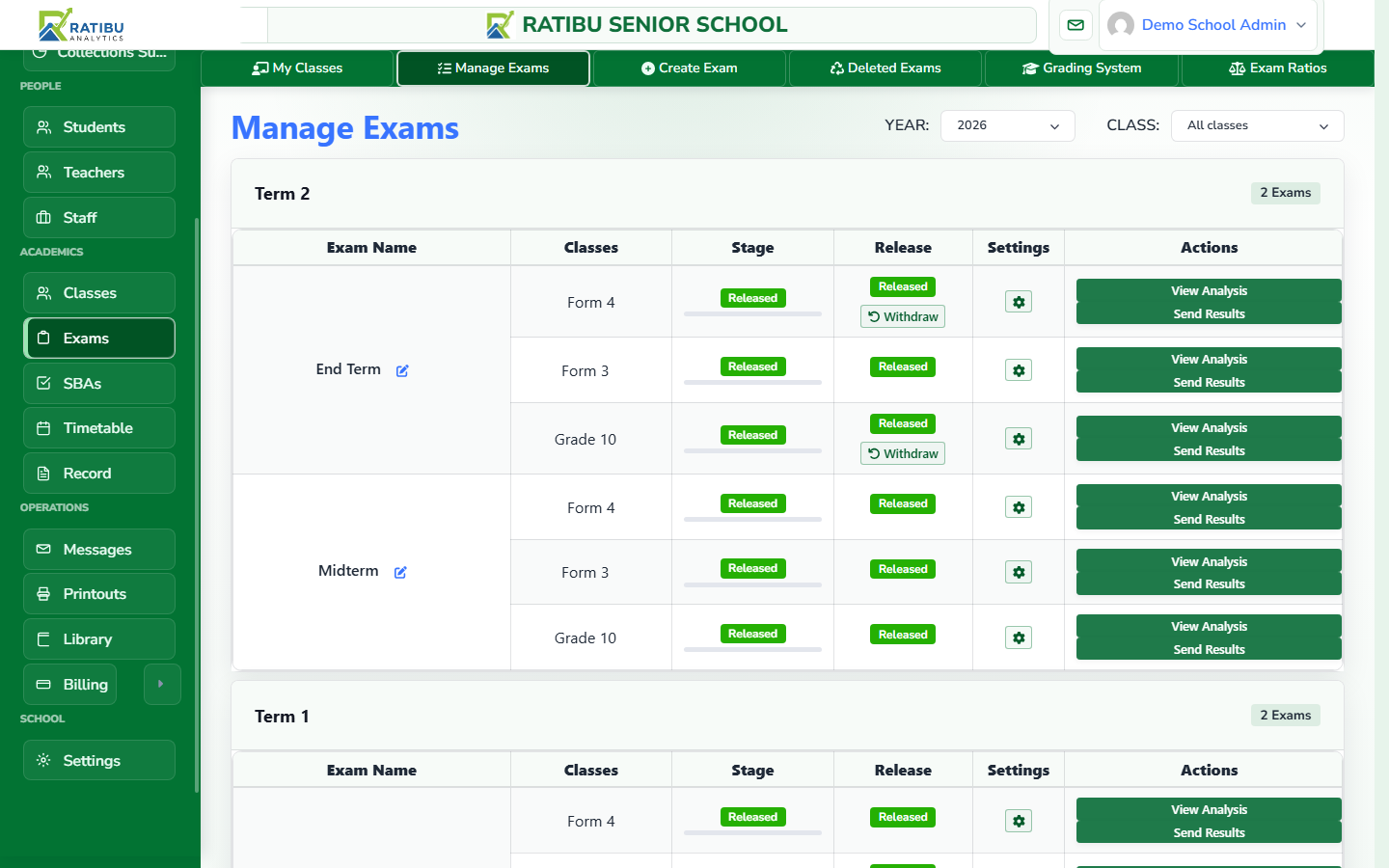
Set the grading system
Choose the grading system that maps raw marks to grades (A, B, C…) or CBC performance levels. This is used consistently when reports are generated.
Entering marks
Marks entry is where the daily work happens. Teachers open their assigned subject for a stream and enter scores against each learner. Everything saves securely and feeds analysis instantly.
Open the marks grid
From the dashboard, open Marks, choose the exam, class/stream, and subject. The grid lists every learner in that stream with an input for the score.
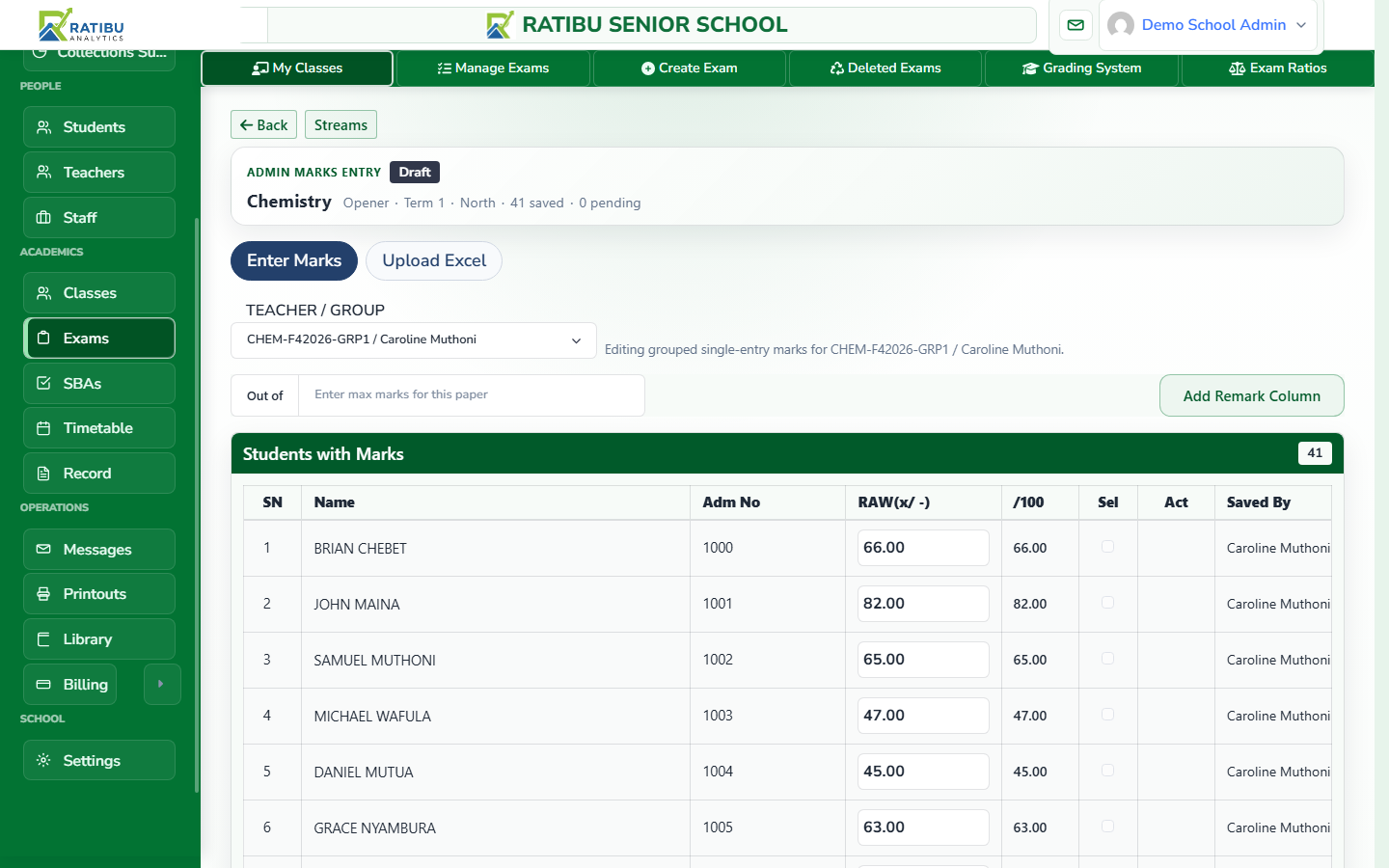
Moderate and publish
Administrators review completion across subjects, check for missing marks, then publish results. Publishing makes analysis and report forms available to the right people.
Reading analysis and generating reports
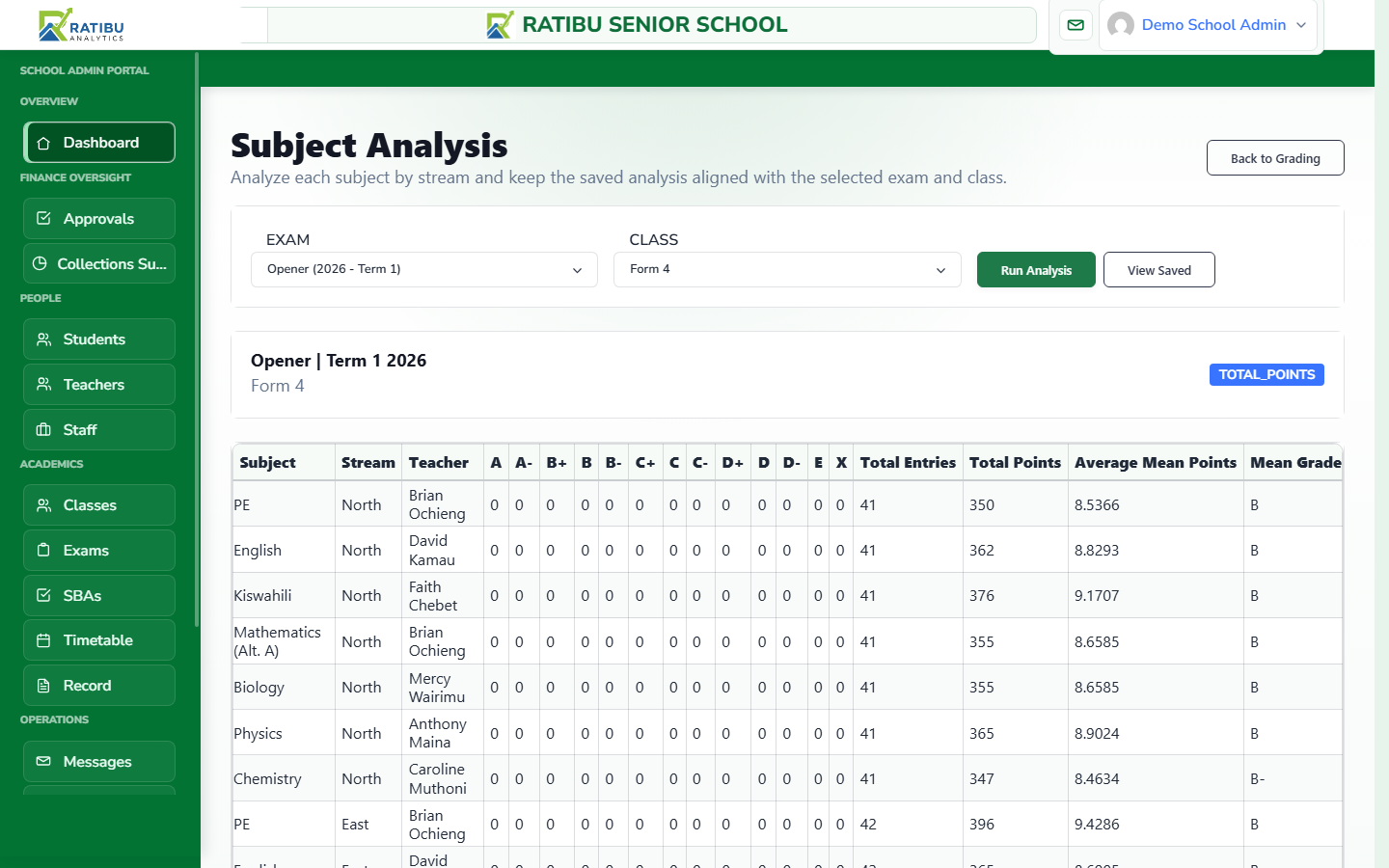
Once marks are in, Ratibu turns them into analysis: mean scores, grade distributions, subject comparisons, and merit lists. Leaders use this to spot strong departments and learners who need support.
Open subject and class analysis
Compare subjects within a class, view stream performance, and drill into individual learners. Bars show average scores at a glance; click through for the full picture.
Generate reports and exports
Produce report forms, merit lists, mark sheets, and class summaries as PDFs or Excel files for meetings, parents, and school records.
- Report forms — per-learner results for parents.
- Merit lists — ranking across a class or stream.
- Mark sheets — printable grids for verification.
- Excel exports — raw data for further analysis.